Deutsch
 lingua italiana
 日本語
日本語

Preparation
1. An SD card above 8G, preferably a high-speed card, because the speed of the card directly affects the running speed of the Raspberry Pi.
2. Download the Raspberry Pi system image file, the address is as follows:
//shumeipai.nxez.com/download There are many operating system images suitable for Raspberry Pi, choose one that suits you.
//shumeipai.nxez.com/download There are many operating system images suitable for Raspberry Pi, choose one that suits you.
3. Win32diskimager, a tool for installing images under Windows, can also be found and downloaded on the above page.
Installation actual combat
1. Unzip the downloaded operating system image compression file to get the img image file (the suffix of the file name is img).
2. After using the SD card tray or card reader, connect it to the computer.
3. Unzip and run the win32diskimager tool.
4. Select the system image (img file) in the win32diskimager software, select the drive letter of SD under "Device", and then select "Write", during which a dialog box appears and select Yes.
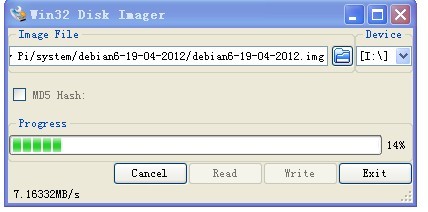
5. The installation process may be slow, depending on the speed of your SD card.
Wait until the dialog box write successful appears to indicate success.
If Windows prompts you whether to format the SD card, please do not format it, otherwise the system installed in the hidden partition may be erased and unable to enter the system.
common problem
1. After the installation is complete, you will find that the capacity displayed on the SD card is lower than expected. This is because the Windows system can only display the boot partition in FAT format, which is only a few tens of MB. The larger partition is the Linux partition, which cannot be seen by the Windows system. This does not affect the work of the Raspberry Pi system.
1. After the installation is complete, you will find that the capacity displayed on the SD card is lower than expected. This is because the Windows system can only display the boot partition in FAT format, which is only a few tens of MB. The larger partition is the Linux partition, which cannot be seen by the Windows system. This does not affect the work of the Raspberry Pi system.
2. If you try to reinstall the system on the SD card where the system has been installed, or use the SD card as another use, you need to restore the hidden partition. Disks can be formatted using the SD Formatter tool. Proceed as follows:
Run SD Formatter,!!! Carefully check the partition drive letter three times to avoid the tragedy of formatting other disks!!!

Click “Option”, select “ON” for “Format Size Adjustment”.

Click "Format", "OK".


Finish.

It can be seen that the displayable capacity of the SD card has returned to normal. "Exit" to exit.